
A misconfigured Windows Server is not just a technical problem. It is a business liability. For Irish enterprises running ERP systems, accounting software like Sage, or multi-user databases over Remote Desktop Services, a single security gap can mean regulatory fines, extended downtime, or unauthorized access to sensitive financial data. This guide walks IT managers and business owners through the full process: from pre-configuration requirements to applying security baselines, securing RDS connections with certificates, troubleshooting edge cases, and verifying ongoing compliance. Follow these steps to build a repeatable, auditable setup that holds up under real enterprise demands.
Table of Contents
- Requirements and preparation before configuring Windows Server
- Step-by-step: Applying Windows Server security baselines using OSConfig
- Configuring secure remote access with RDS certificates
- Troubleshooting and customizing security baselines
- Verification and ongoing maintenance
- Why baseline configuration beats manual tweaks every time
- Secure your business with expert Windows Server solutions
- Frequently asked questions
Key Takeaways
| Point | Details |
|---|---|
| Standardize your setup | Using OSConfig for security baselines ensures consistent, compliant Windows Server configurations. |
| Secure remote access | Protect RDP with enterprise certificates to guarantee encrypted and authenticated connections. |
| Customize responsibly | Understand baseline defaults to adapt features like drive redirection with confidence. |
| Maintain and verify | Regular audits and updates keep your server environment secure and resilient. |
| Consider expert solutions | Managed Windows Server hosting can streamline security and support for your business. |
Requirements and preparation before configuring Windows Server
With the high stakes clear, let's start by making sure you have everything in order before changing any settings.
What you need before you begin
Getting the foundation right saves hours of rework later. Before touching any server settings, confirm you are working with a supported Windows Server version. Microsoft supports security baseline deployment on Windows Server 2025, Windows Server 2022, and Windows Server 2019. Older versions may lack the OSConfig module entirely, which means you would need to rely on slower, more error-prone manual processes.
| Requirement | Detail |
|---|---|
| Supported OS | Windows Server 2019, 2022, or 2025 |
| Admin rights | Local administrator or Domain Admin account |
| Domain status | Standalone or domain-joined (affects baseline scenario) |
| PowerShell version | 5.1 or later (7.x recommended) |
| Tools needed | OSConfig module, Windows Admin Center, Server Manager |
| Certificates | .pfx file for RDS connection security |
| Network | Static IP, firewall rules reviewed, VPN configured |
You also need to verify that your network is correctly configured before any baseline is applied. This includes confirming that your domain controller is reachable (for domain-joined setups), that firewall ports are open for RDS and Windows Admin Center, and that your server has a static IP address. Do not skip this step. Applying a security baseline to a misconfigured network can lock you out of the server entirely.
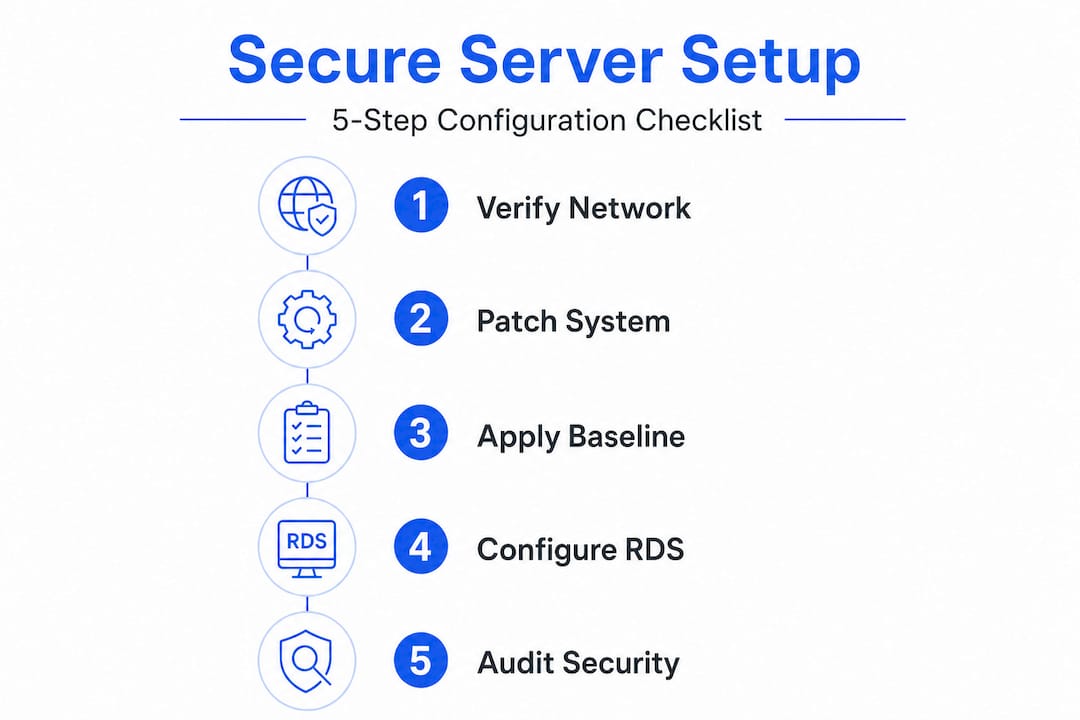
The importance of patching is often underestimated until something breaks. Ensure your server is fully updated before applying any baseline. Applying Microsoft's baseline on top of an unpatched system creates unpredictable conflicts.
Before proceeding, review a secure hosting checklist to confirm your environment meets all prerequisites. This is especially useful for teams setting up Windows Server for the first time in a cloud or hybrid environment.
Pro Tip: Use Windows Admin Center to get a visual overview of your server's current security state before applying any baseline. It highlights outdated settings and missing updates in one dashboard, which cuts preparation time significantly.
Windows Server 2025 security baselines include over 300 settings deployable via OSConfig using PowerShell, Windows Admin Center, or Azure Policy for standardized security. That scale is exactly why manual configuration is not realistic for enterprise environments. Standardized tools exist for a reason.
Step-by-step: Applying Windows Server security baselines using OSConfig
Now that you're set up, follow these steps to configure your Windows Server securely and efficiently.
Why OSConfig is the right tool for this job
OSConfig is Microsoft's purpose-built module for applying, managing, and auditing security baselines on Windows Server. The key advantage over manual Group Policy Object (GPO) editing is consistency. When you apply a GPO manually, individual settings can be overwritten, forgotten, or simply never documented. OSConfig enforces a desired state and flags any drift from that state automatically.
Prioritizing Microsoft OSConfig for baselines over manual GPO prevents configuration drift and ensures ongoing compliance. This matters enormously for Irish businesses subject to GDPR, where you may need to demonstrate that security controls were consistently applied over time.
Here is how to apply a security baseline for a domain-joined server:
- Open PowerShell as Administrator on your Windows Server 2025 machine.
- Install the OSConfig module by running: "Install-Module -Name Microsoft.OSConfig -Force`
- Verify installation with:
Get-Module -Name Microsoft.OSConfig -ListAvailable - Apply the security baseline using the Set-OSConfigDesiredConfiguration command. For a domain-joined server, specify the scenario:
Set-OSConfigDesiredConfiguration -Scenario SecurityBaseline/WS2025/Member - Confirm the configuration was applied by running:
Get-OSConfigDesiredConfiguration -Scenario SecurityBaseline/WS2025/Member - Review the output to check which settings were applied and whether any conflicts were detected.
To apply a security baseline for a domain-joined device: install the OSConfig module, then use the Set-OSConfigDesiredConfiguration command specifying the scenario like SecurityBaseline/WS2025/Member.
Important: If you are running a standalone (workgroup) server, use the Standalone scenario instead of Member. Applying the wrong scenario can result in unnecessary restrictions that are difficult to reverse cleanly.
For environments connected to Azure-based security solutions, you can also deploy the baseline via Azure Policy, which centralizes baseline management across multiple servers from a single control plane. This is especially valuable for businesses managing multiple Windows Server instances.
Pro Tip: Schedule a monthly PowerShell audit using Get-OSConfigDesiredConfiguration to catch any settings that have drifted since the last baseline application. New Windows updates occasionally reset individual settings, and catching this early prevents compliance gaps.
For organizations looking at a broader secure VPS setup in Ireland, integrating OSConfig from day one is far easier than retrofitting it onto a server that has been manually configured over months or years. Start clean, stay consistent.
Additionally, DLL file verification is a useful supplementary security check after applying your baseline. Rogue or outdated DLL files can create vulnerabilities that even well-configured baselines do not fully address at the application layer.
Configuring secure remote access with RDS certificates
After standardizing server settings, shift focus to protecting remote access for staff and admins.
The real risk of unencrypted RDP
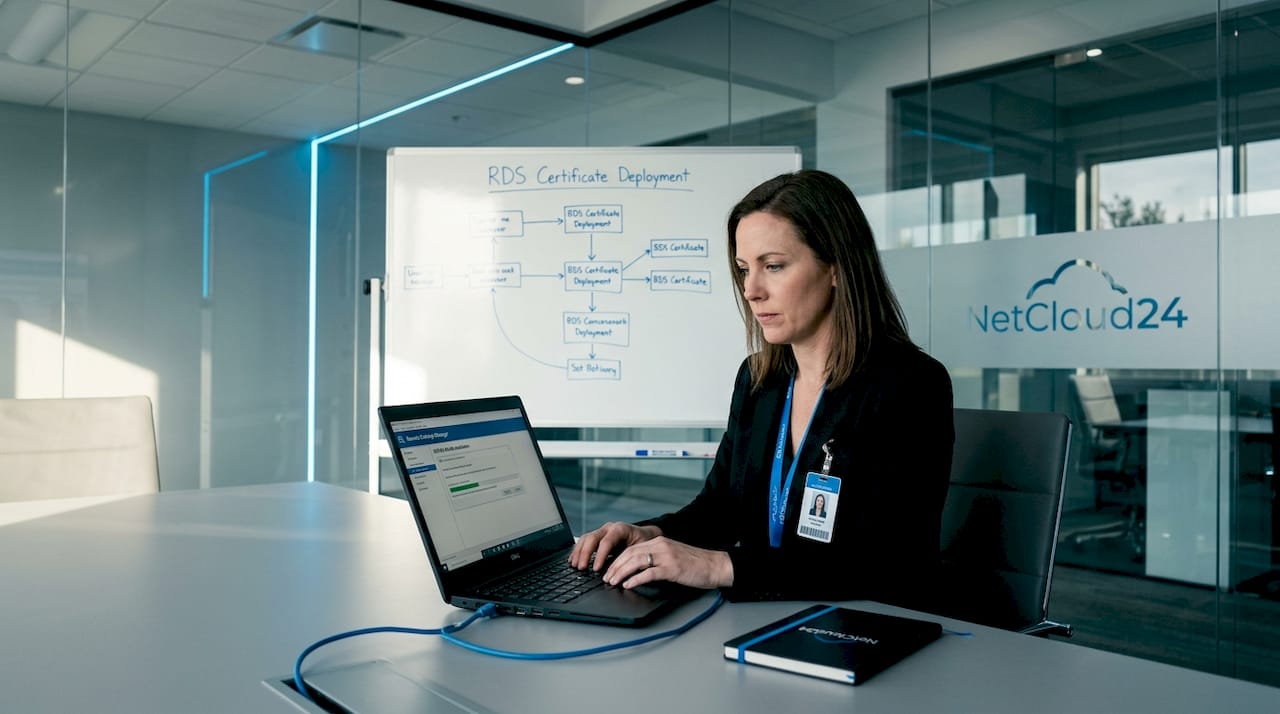
Many IT teams still run Remote Desktop Protocol (RDP) connections without a properly configured certificate. What this means in practice is that the connection may use a self-signed certificate generated automatically by Windows. Self-signed certificates are not trusted by client machines, which produces security warnings and, more critically, does not guarantee that the server you're connecting to is the one you think it is.
For enterprise environments running Sage, ERPs, or financial databases, this is an unacceptable risk. Certificate-based authentication verifies the server's identity and encrypts the session using a trusted chain.
| Feature | RDS without certificate | RDS with .pfx certificate |
|---|---|---|
| Session encryption | Basic (may use self-signed) | Strong (trusted chain) |
| Server identity verification | None or untrusted warning | Verified by CA |
| User trust | Certificate warnings on login | Clean, trusted connection |
| Compliance (GDPR, ISO) | Likely fails audit | Meets enterprise standards |
| Certificate renewal | Manual or none | Automatable |
| Admin overhead | Low initially, high at incident | Predictable, low |
Here is how to assign a trusted certificate to your RDS deployment:
- Obtain a valid .pfx certificate from a trusted Certificate Authority (CA), either internal or public.
- Open Server Manager and navigate to Remote Desktop Services.
- Click on your deployment, then select Edit Deployment Properties.
- Go to the Certificates section and click Select Existing Certificate.
- Browse to your .pfx file, enter the private key password, and confirm the import.
- Apply the certificate to all required roles: RD Connection Broker, RD Web Access, and RD Gateway if applicable.
- Test the connection from a client machine to confirm the certificate is trusted and no warnings appear.
For RDS, use certificates to secure connections: select an existing .pfx certificate in Server Manager > Remote Desktop Services > Edit Deployment Properties > Certificates.
Pro Tip: Set up automatic certificate renewal through your CA or a tool like Certbot or your internal PKI. Certificate expiry is one of the most common causes of sudden RDS access failures in enterprise environments, and it is entirely preventable.
Irish businesses operating under GDPR must be able to demonstrate that data in transit is encrypted. Using a properly issued certificate for RDS connections directly supports this requirement and simplifies audit reporting.
Troubleshooting and customizing security baselines
Once configuration and security setup are complete, ensure you can troubleshoot, adapt, and validate the results as business needs change.
Common issues after baseline deployment
Applying a security baseline for the first time almost always surfaces one or two conflicts with existing software or workflows. That is normal. The goal is to resolve them systematically rather than rolling back the entire baseline, which would defeat the purpose.
Here are the most frequent issues you'll encounter and how to approach them:
- RDP drive redirection disabled: The security baseline disables this feature by default to reduce data exfiltration risk. If your users need to map local drives through RDS sessions (common for file transfers in Sage or similar apps), you can selectively re-enable it.
- Failed sign-ins after baseline: Check Event Viewer under Windows Logs > Security for event ID 4625. This usually points to Kerberos policy changes, NTLM restrictions, or password policy conflicts.
- Applications failing after baseline: Some legacy enterprise applications rely on deprecated cryptographic protocols. The baseline disables older ciphers. Check Application logs for specific error codes.
- Windows Admin Center connectivity lost: Verify that WinRM is enabled and that firewall rules were not overridden by the baseline. OSConfig may tighten WinRM settings in certain scenarios.
- GPO conflicts with baseline settings: If existing GPOs override OSConfig settings, identify conflicts using the
Get-OSConfigDesiredConfigurationoutput and reconcile with Group Policy Results (gpresult /H).
Security baselines disable RDP drive redirection by default; re-enable via Set-OSConfigDesiredConfiguration if your specific business workflows require it.
When to escalate: If you are seeing repeated baseline drift after applying OSConfig, or if critical enterprise applications remain broken after targeted re-enablement, escalate to your vendor's support team. Do not attempt to disable entire baseline scenarios as a workaround. Selective configuration adjustments are the correct approach. Broader rollbacks introduce compliance and security risk.
Review your Windows Server security checks after troubleshooting to confirm that your fixes did not inadvertently weaken other settings.
Verification and ongoing maintenance
After resolving initial issues and customizing features, round out the process with efficient verification and maintenance.
Confirming your configuration is solid
Verification is not a one-time task. A correctly configured server today can drift out of compliance next month due to a software update, a manual change by another admin, or a new GPO pushed by the domain. Build verification into your regular maintenance calendar.
Here is a structured approach to ongoing maintenance:
- Run Get-OSConfigDesiredConfiguration monthly to confirm all baseline settings remain applied.
- Review Windows Admin Center's compliance dashboard after every major Windows Server update to catch new recommended settings.
- Audit Event Viewer logs weekly for failed authentication events (ID 4625) or privilege escalation attempts (ID 4672).
- Verify RDS certificate validity at least 30 days before expiry and renew proactively.
- Test remote access from an external connection point quarterly to simulate real user experience and confirm VPN and RDS configurations are intact.
Windows Server 2025 security baselines cover over 300 settings deployable via OSConfig using PowerShell, Windows Admin Center, or Azure Policy, which makes audit reporting straightforward when your tools are aligned.
| Maintenance task | Frequency | Tool |
|---|---|---|
| Baseline compliance check | Monthly | OSConfig / PowerShell |
| Security event log review | Weekly | Event Viewer |
| RDS certificate check | Monthly (renew 30 days before expiry) | Server Manager / PKI |
| Windows Server patching | As released (at least monthly) | Windows Update / WSUS |
| Full security audit | Quarterly | Windows Admin Center |
| Backup verification | Weekly | Backup software / Azure |
Use this table as a living reference document for your team. Assign ownership of each task to a named person or role so nothing falls through the cracks during busy periods. Your Windows VPS post-configuration list can extend this into a broader operational checklist for your environment.
Why baseline configuration beats manual tweaks every time
There is a persistent belief in IT circles that experienced administrators can produce a more precisely tuned server through manual GPO configuration than through a standardized baseline. In practice, the opposite is almost always true.
Manual configurations are personal. They reflect the habits, knowledge gaps, and priorities of whoever made the changes. When that person leaves, or when a second administrator makes additional changes, you get layered, undocumented settings that nobody fully understands. This creates what we call "configuration archaeology," where troubleshooting a production incident means digging through years of unexplained changes to find the root cause.
Baselines, by contrast, are documented, versioned, and testable. When something breaks after an update, you can compare the current state against the known baseline and identify the exact deviation. That kind of clarity is invaluable during an incident at 2 a.m. with users locked out of their ERP system.
There is also a compliance dimension that often gets overlooked. GDPR and industry standards do not just require that controls exist. They require that controls are consistently applied and that you can prove it. A manually configured server with no standardized baseline makes that proof incredibly difficult. An OSConfig-managed server with audit logs and version history makes it nearly trivial.
The businesses that struggle most with scaling secure access across multiple servers or environments are almost always the ones that built their initial setup manually. They hit a point where each new server is slightly different, each configuration change requires testing across every variant, and any audit becomes a project in itself. Baseline-first setups scale cleanly. Manual setups do not.
Our honest recommendation: even if your current server is running fine, invest the time to apply a proper OSConfig baseline and document any deliberate deviations from it. Future you will be grateful, and so will your auditors.
Secure your business with expert Windows Server solutions
Applying security baselines, configuring RDS certificates, and maintaining a structured verification schedule are the right foundations. But for many Irish businesses, managing all of this in-house while also running core operations is a significant stretch. That is exactly where expert-managed hosting changes the equation.

Enterprise-ready Windows Server hosting from NetCloud24 provides pre-configured Windows Server environments with RDS licensing included, NVMe enterprise storage, VPN access, and security baselines already in place. Deployments go live within five minutes, with GDPR-compliant infrastructure built for Irish business needs including support for Sage, Xero, and other common enterprise applications. Our team handles security, patching, and certificate management so your IT team can focus on running the business, not firefighting server configurations. If you want a secure, scalable Windows Server environment without the setup overhead, we can help.
Frequently asked questions
What is the fastest way to apply Windows Server security baselines?
The quickest method is using OSConfig via PowerShell or Admin Center, which applies over 300 settings with a single command rather than configuring each policy manually.
How do I enable RDP drive redirection after applying a security baseline?
Use Set-OSConfigDesiredConfiguration to specifically re-enable the drive redirection feature after baseline deployment, keeping all other baseline settings intact.
Why use certificates for RDS instead of passwords?
Certificates ensure encrypted, authenticated remote access and meet enterprise security standards that password-only authentication cannot satisfy, particularly for GDPR compliance requirements in Ireland.
Is manual Group Policy still recommended for Windows Server security?
Manual GPO changes are more prone to drift and harder to audit than modern OSConfig baselines, making them a less reliable choice for enterprise environments that need consistent, provable security controls.
What is the best way to audit my server's security configuration?
Check applied baselines using Windows Admin Center or OSConfig audit reporting, which provides a clear view of current configuration state compared to the desired baseline for ongoing compliance verification.