
Most people assume remote access means connecting to a network from the outside, the same way a VPN works. That assumption leaves a lot of value on the table. What are remote desktop services, really? They are something fundamentally different: a technology that delivers an entire working environment to your screen, with applications running on a central server and your data never leaving that server. This article explains how RDS works, what it's made of, where it fits in your IT strategy, and why getting it right matters more than most people realize.
Table of Contents
- Key takeaways
- What are remote desktop services and how they work
- RDS architecture: the roles that matter
- Security risks in RDS and how to address them
- RDS versus VPN and basic remote desktop
- Practical applications and who actually benefits
- My take on what most people get wrong about RDS
- Run your business on a secure RDS-ready server
- FAQ
Key takeaways
| Point | Details |
|---|---|
| RDS delivers workspaces, not just access | Applications run on a central server while users see and interact with them remotely. |
| Multiple roles make up a real deployment | Session hosting, licensing, gateway, and brokering are all separate components that must be planned. |
| Security requires more than a firewall | MFA, network segmentation, and monitoring are the real controls that protect RDS environments. |
| RDS beats VPN for app delivery | When you need centralized, consistent application access, RDS outperforms VPN on every practical dimension. |
| Licensing is a distinct requirement | Remote desktop service licensing is a separate layer from the Windows Server license itself. |
What are remote desktop services and how they work
Remote Desktop Services, commonly abbreviated as RDS, is a Microsoft Windows Server feature set that lets multiple users connect to and use a centralized server environment from their own devices. The core idea is this: instead of running software on each person's local machine, the server does all the computing work and sends only a picture of that work to the user's screen. The user's keyboard and mouse inputs travel back to the server, creating the experience of sitting in front of a machine that is physically somewhere else.
This works through a process of bidirectional screen and input exchange. The server captures its display output, compresses it, and transmits it across the network using encryption and adaptive rendering to keep the experience smooth even on limited bandwidth. The primary protocol doing this work is RDP, which stands for Remote Desktop Protocol, a Microsoft-developed standard that manages that two-way stream of display data and user input.
The practical result is described well by the core principle of RDS: apps run on the server and data remains centralized, while the user works in that environment remotely. Nothing significant is stored on the client device. A user on a thin client, a tablet, or a home laptop can run demanding enterprise software as if they were sitting at a workstation in the office.
Here is a simplified view of how data flows in an RDS session:
| Stage | What happens |
|---|---|
| User connects | Client device initiates a session request through the RDS gateway |
| Authentication | User credentials are verified; licensing is validated |
| Session assigned | Connection broker routes the user to an available session host |
| Screen transmitted | Server renders the desktop/app and sends compressed display data |
| Input returned | Keyboard and mouse actions from the client travel back to the server |
| Session ends | Server saves state; client receives no persistent data locally |
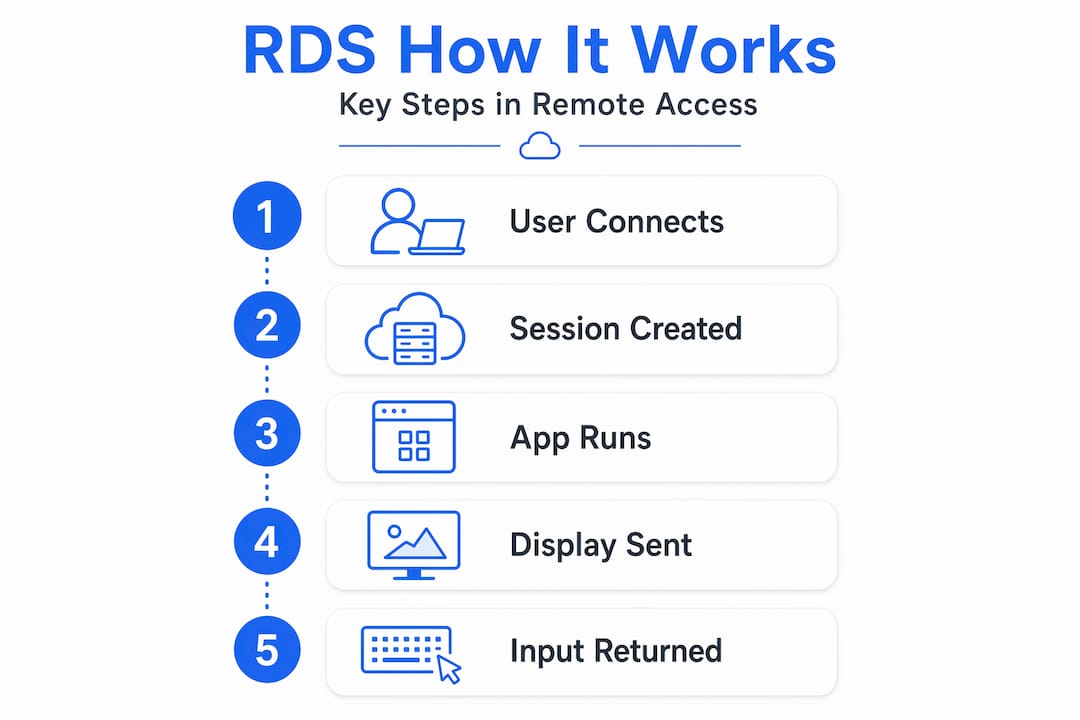
This flow explains why RDS is so attractive for IT management. All the meaningful compute, data, and application logic stays in one place you control.
RDS architecture: the roles that matter
A real RDS deployment is not a single toggle you switch on. Effective RDS deployments require planning across multiple Windows Server role components, each solving a different part of the problem. Understanding these roles helps you see why RDS scales the way it does and where security risks actually live.
The key roles in a Windows Server RDS environment are:
- RD Session Host: The server where user sessions actually run. This is where applications execute and where users spend their time. In large deployments, you will have several of these.
- RD Connection Broker: Manages load balancing and reconnects users to existing sessions after a disconnection. Without this role, scaling beyond a single server becomes unreliable.
- RD Gateway: Allows secure external access over HTTPS, so users outside the network do not need to connect through a VPN first. This role is the public-facing entry point.
- RD Web Access: Lets users access published applications or desktops through a web browser, which removes the need for a dedicated client install in many scenarios.
- RD Licensing: Manages Client Access Licenses (CALs), which are the legal and technical mechanism ensuring each user or device accessing RDS is properly licensed. This role is what is meant when people ask about remote desktop service licensing. It is a distinct requirement from the Windows Server license itself.
The multi-role design matters because it separates concerns. Security policies for the gateway are different from session host hardening. Licensing enforcement lives in its own role so it does not interfere with session availability. Scalability is achieved by adding session hosts without redesigning everything else.
Pro Tip: Deploy the RD Licensing role on a server separate from your session hosts in any production environment. A licensing server failure should not interrupt active user sessions, and keeping them separate makes maintenance far cleaner.

Security risks in RDS and how to address them
RDS security deserves more attention than most IT teams give it. The protocol and architecture are sound, but the way RDS gets deployed in practice creates real exposure. The most cited risk is this: RDP-based access exploited through valid credentials allows attackers to move laterally through a network while blending in perfectly as normal administrative activity. There is no suspicious executable running. There is no unusual traffic pattern. It just looks like an admin logged in.
That is the uncomfortable truth about RDS security. The controls that actually protect you are not about the protocol itself. They are about identity, access, and monitoring.
"Security stance on RDP must focus on identity and monitoring controls rather than mere protocol blocking, because RDP sessions blend in with legitimate administrative activity and attackers abuse this feature." Remote Access Security Best Practices
The practical controls that make a measurable difference include:
- Multi-factor authentication (MFA): Require MFA at the RD Gateway and at the identity provider level. A stolen password alone should not be enough to open a session.
- Network segmentation: Session hosts should not be directly reachable from the internet or from arbitrary internal segments. Route all external connections through the RD Gateway.
- No public RDP port exposure: Exposing RDP ports to the internet is one of the most common and avoidable mistakes. Use private overlay networks or zero-trust connectivity so the port is never reachable from a public IP.
- Centralized logging and monitoring: Collect session start/stop events, authentication failures, and privileged access activity in a SIEM or centralized log platform. Anomalous patterns, like a user logging in at 2am from a new location, need to trigger alerts.
- RDP redirection defaults: Microsoft defaults RDP redirections off unless explicitly enabled, showing consent dialogs for things like clipboard and drive sharing. Respect those defaults and only enable what your users genuinely need.
Pro Tip: Review your Windows Server RDP hardening settings at least quarterly. Default configurations drift over time as patches are applied and roles are added, and a configuration that was secure at deployment may not stay that way.
RDS versus VPN and basic remote desktop
These three technologies are frequently confused because they all involve accessing something remotely. They solve different problems.
A VPN gives your device access to a network. Once connected, your device behaves as if it were on that network, but your applications still run locally and your data travels back and forth across the tunnel. A basic remote desktop connection (one user, one machine) gives you control of a specific computer. RDS is different from both. RDS provides a centrally hosted workspace where applications run server-side and users share that resource pool efficiently.
| Feature | VPN | Basic RDP | Remote Desktop Services |
|---|---|---|---|
| Where apps run | Client device | Remote PC | Centralized server |
| Multi-user support | No | No | Yes |
| Centralized management | Limited | No | Yes |
| Data stays on server | No | Yes | Yes |
| Licensing requirement | No | No | Yes (RDS CALs) |
| Scalability | Low | Very low | High |
| Best for | Network access | One-to-one support | Multi-user app delivery |
The practical takeaway: if you need five people in your company to access the same accounting software from different locations, VPN makes that complicated and a basic remote desktop connection handles only one person at a time. RDS handles all five simultaneously with one managed environment, which is exactly why enterprises centralize Windows desktops through RDS for scalable, simplified access.
Practical applications and who actually benefits
RDS is not just for large enterprises, though it scales well for them. The clearest use cases break down as follows.
- Remote workers accessing business applications: Staff who need access to ERP systems, accounting platforms, or databases from home get a consistent, full-featured environment regardless of what device they own.
- IT administrators managing multiple users: Instead of patching software on fifty machines, admins update one session host and every connected user instantly has the latest version.
- Application delivery without local installs: Some software is too heavy, too licensed, or too sensitive to deploy on individual machines. RDS publishes it centrally and controls who accesses it.
- Thin client and BYOD environments: Organizations can issue inexpensive thin clients or allow personal devices while keeping all corporate data on the server. The endpoint becomes less critical because nothing important lives there.
- Integrated support workflows: IT teams managing diverse environments benefit from platforms that combine remote access and support workflows, reducing the number of tools needed to manage endpoints across operating systems.
The honest challenge with RDS adoption is planning. Many businesses underestimate the role configuration effort and skip proper licensing setup, which creates compliance problems down the road. Starting with a pre-configured, RDS-ready VPS environment reduces that friction significantly.
My take on what most people get wrong about RDS
I've seen the same pattern repeat across dozens of deployments. A business decides it needs remote access, someone sets up a VPN, and six months later the team is frustrated. Applications are slow because they're running on laptops over a stretched connection. IT can't manage software versions across twenty different machines. Security audits surface problems because sensitive data has ended up on personal devices.
What I've learned is that most organizations discover RDS too late. They arrive at it as a fix, not as a starting point. And when they do, they often underestimate what a proper deployment involves. They enable the session host role, create a few accounts, and call it done. The licensing role gets forgotten until a compliance review. The gateway never gets configured so the RDP port ends up exposed to the internet.
The real value of RDS is not just remote access. It's the control you get over the entire working environment. Every user gets the same configuration, the same software versions, the same security policies. Data never leaves the server. An IT admin can make one change that applies everywhere.
My advice: treat RDS as infrastructure, not as a feature. Give it the same planning attention you would give a network redesign, because for remote workers, it effectively is the network they live in every day.
— Lukasz
Run your business on a secure RDS-ready server
If this breakdown of remote desktop services has clarified what you actually need, the next step is finding infrastructure that is built for it from day one.
Netcloud24 provides Windows VPS hosting with RDS included, pre-configured and ready to use within five minutes. Environments include full Windows Server with RDS licensing, NVMe enterprise storage, high availability, and built-in firewall and VPN access. Whether your team needs access to Sage, Xero, a custom ERP, or any database-driven application, Netcloud24's Irish data center infrastructure delivers that securely, at scale, with GDPR compliance built in. Talk to the Netcloud24 team to get the right setup for your business.
FAQ
What are remote desktop services in simple terms?
Remote Desktop Services is a Microsoft Windows Server feature that lets multiple users connect to and use applications running on a central server, with only the screen image transmitted to their device. All data and processing remain on the server, not the user's machine.
How does RDS differ from a VPN?
A VPN connects your device to a network so your local applications can reach remote resources. RDS delivers the entire desktop or application environment from the server, meaning the app runs centrally and your device only receives the display.
What is remote desktop service licensing?
RDS licensing refers to the Client Access Licenses (CALs) required for each user or device that connects to an RDS environment. These are separate from the Windows Server license and must be managed through the RD Licensing role.
Is RDS secure enough for business use?
Yes, when properly configured. The key controls are MFA at the gateway, no direct internet exposure of RDP ports, network segmentation, and centralized session monitoring. Default settings alone are not sufficient for a production environment.
What is the main benefit of using remote desktop services?
The primary benefit is centralized management: one environment to update, secure, and monitor instead of managing software and data across every individual user device. This makes RDS especially effective for distributed teams and sensitive business applications.