
Getting remote desktop access right the first time saves hours of frustration. Whether you're an IT administrator connecting to a server room you can't physically reach, or a professional working from home on a business-critical Windows machine, following a clear step by step remote desktop process is the difference between a secure, stable connection and a recurring headache. This guide walks you through every phase: what you need before you start, how to configure Windows RDP, how to connect safely across networks, and what to do when things go wrong.
Table of Contents
- Key takeaways
- Step by step remote desktop: before you touch a setting
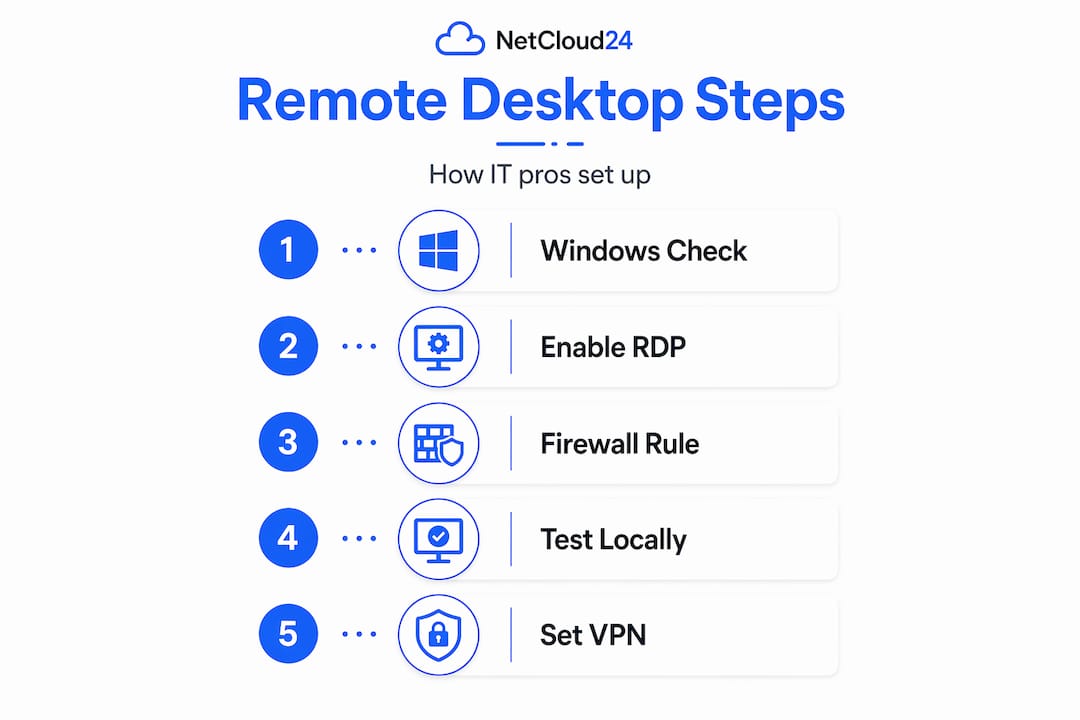
- How to enable and configure Windows Remote Desktop
- Connecting across networks: security and access
- Troubleshooting remote desktop issues
- My honest take on remote desktop setups
- Why managed VPS hosting simplifies remote desktop
- FAQ
Key takeaways
| Point | Details |
|---|---|
| Check your Windows edition first | Native RDP only works on Windows Pro, Enterprise, and Education editions, not Home. |
| Security starts at setup | Change the default RDP port and enable MFA before exposing any machine to external access. |
| Power settings matter | Adjust sleep and network adapter settings on the host PC or connections will drop unexpectedly. |
| VPN or RDS Gateway for off-network access | Connecting from outside a local network requires routing traffic through a VPN or RDS Gateway. |
| Test locally before going remote | Verify the connection works on your local network before opening it to the internet. |
Step by step remote desktop: before you touch a setting
You can save yourself a lot of time by confirming a few things before you begin the actual remote desktop setup instructions. Skipping this phase is where most failed setups originate.
Windows edition check. Native RDP is unavailable on Windows Home editions. You need Windows 10 Pro, Enterprise, or Education on the host machine (the one you're connecting to). The client machine connecting in can run any edition, including Home.
Your network basics. You need to know the host PC's local IP address or its computer name. For connections within the same office network, the computer name usually works. For cross-network connections, you'll need the public IP address of the router or a static DNS hostname.
Here's a checklist of what to confirm before starting:
- Host machine runs Windows Pro, Enterprise, or Education
- You have administrator access on the host machine
- The host machine is powered on and not set to sleep automatically
- You know the host's local IP address (run "ipconfig` in Command Prompt)
- Port 3389 is not blocked by a local firewall or ISP (for RDP; can be changed)
- For cross-network connections, VPN access or port forwarding is available
- User accounts for remote access are created with strong passwords
Free alternatives if your edition doesn't qualify. Chrome Remote Desktop sets up in roughly five minutes and runs on Windows, macOS, Linux, and Chromebooks at no cost. It's not the right tool for enterprise-grade multi-user sessions, but for individuals or occasional access it handles the job cleanly. RDP offers better bandwidth performance than VNC, but VNC supports a broader range of operating systems when cross-platform access is the priority.
Pro Tip: Create a dedicated non-admin user account specifically for remote access rather than using your main Administrator account. This limits the damage if credentials are ever compromised.
How to enable and configure Windows Remote Desktop
This is the core of any remote desktop connection tutorial. Follow these steps in order on the host machine.
- Open System Settings. Press
Windows + I, go to System, then scroll down to Remote Desktop. Toggle "Enable Remote Desktop" to On. Confirm when prompted. - Note the PC name. Directly below the toggle, Windows displays the PC name you'll use to connect. Write it down.
- Adjust power settings. Go to Settings > System > Power & Sleep. Set both "Screen" and "Sleep" to Never when plugged in. A PC that sleeps blocks all incoming RDP connections and is one of the most common causes of failed sessions.
- Fix network adapter power settings. Open Device Manager, expand Network Adapters, right-click your primary adapter, select Properties, go to the Power Management tab, and uncheck "Allow the computer to turn off this device to save power." Disabling this setting prevents the adapter from going offline while the machine is idle.
- Configure Windows Firewall. Search for "Allow an app through Windows Firewall," find Remote Desktop, and check both Private and Public boxes. If you use a third-party firewall, create a rule to allow TCP traffic on port 3389 (or your custom port).
- Add authorized users. Back in the Remote Desktop settings panel, click "Select users that can remotely access this PC" and add only the accounts that need access. Administrators have access by default; be selective.
- Change the default RDP port (recommended). Open Registry Editor (
regedit), navigate toHKEY_LOCAL_MACHINE\System\CurrentControlSet\Control\Terminal Server\WinStations\RDP-Tcp, findPortNumber, change the value to decimal and enter your new port (e.g., 49152). Update your firewall rule to match the new port. Moving off port 3389 with MFA dramatically reduces automated attack traffic against your endpoint. - Test on your local network first. Open the Remote Desktop Connection client (
mstsc) on another machine on the same network. Enter the host PC name or local IP. If it connects cleanly, your base configuration is correct.
| Setting | Where to configure | Recommended value |
|---|---|---|
| Remote Desktop toggle | Settings > System > Remote Desktop | On |
| Sleep mode | Settings > System > Power & Sleep | Never (plugged in) |
| Network adapter power | Device Manager > Adapter Properties | Power off unchecked |
| RDP firewall rule | Windows Firewall allowed apps | Private and Public enabled |
| Default RDP port | Registry Editor, PortNumber value | Changed from 3389 |
Pro Tip: After enabling Remote Desktop, run netstat -an | find "3389" in Command Prompt to confirm the port is actually listening before attempting a remote connection.
Connecting across networks: security and access
Once you confirm local connectivity works, the next step is making that access available from outside your local network. This is where most guides skip important details.
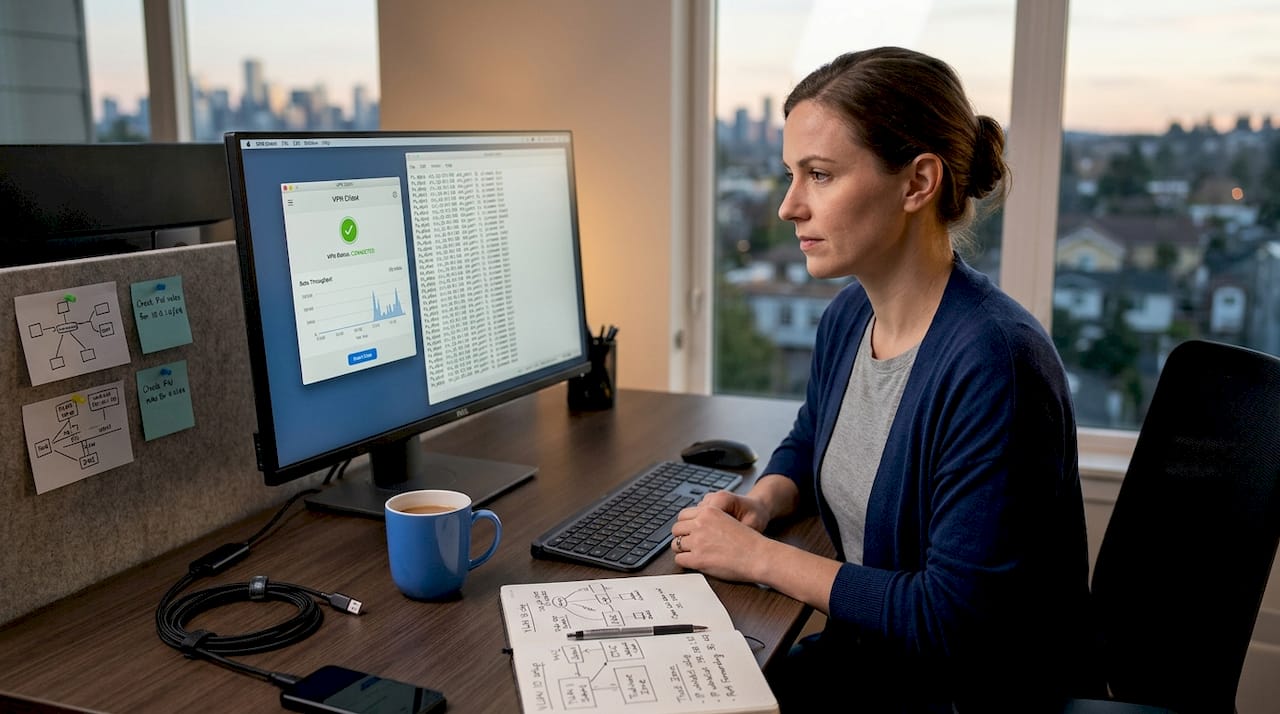
Why you need a VPN or RDS Gateway. Off-campus or restricted network connections require VPN or RDS Gateway authentication before the RDP session can be established. This is not optional in any security-conscious environment. Exposing port 3389 (or any custom RDP port) directly to the internet without a gateway is an invitation for brute-force attacks. A VPN creates an encrypted tunnel; once connected, the remote machine appears to be on the local network.
Port forwarding with caution. If VPN is not available and you must forward the RDP port through your router, at minimum do the following:
- Forward to a non-default port (see step 7 above), not 3389
- Restrict access by source IP address in your router or firewall rules if possible
- Monitor login attempts through Windows Event Viewer (Event ID 4625 for failed logins)
- Use a firewall to geo-block regions you will never connect from
Multi-Factor Authentication. MFA is the most practical way to protect RDP logins without overhauling your infrastructure. Tools like Duo Security or Microsoft Authenticator integrate with Windows logon and add a time-based one-time password (OTP) layer on top of your password. This single change eliminates the vast majority of credential-stuffing attacks.
User permission management. Administrators should create dedicated non-admin remote users and disable the default built-in Administrator account for remote sessions. This limits blast radius if a session is ever hijacked. For enterprise setups, consider pairing your configuration approach with Windows Server security practices that cover compliance requirements alongside access controls.
Directly exposing RDP on port 3389 to the public internet without VPN or MFA protection is the single most exploited configuration in Windows environments. Changing the port reduces noise; MFA actually stops attacks.
Troubleshooting remote desktop issues
Even a well-configured setup runs into problems. Here's how to diagnose the most common ones.
Connection failures: "Computer not found" or timeout errors. This almost always means the PC name is wrong, the local IP has changed, or the host machine is asleep. Verify the host IP with ipconfig, confirm the PC name in System Settings, and check that power settings are configured as described above. Power-saving settings that cut adapter power are responsible for a significant number of intermittent disconnects that look like network problems.
Display bugs after Windows updates. Sometimes Windows updates reset display adapter settings, causing resolution problems or black screens in RDP sessions. In the Remote Desktop Connection client, go to the Display tab before connecting and set the resolution manually. Lowering color depth from 32-bit to 16-bit also helps on slower connections.
Improving responsiveness and reducing latency. Latency under 50 ms feels essentially local during interactive work. Latency over 100 ms becomes noticeable and frustrating during typing or mouse-heavy tasks. If your connection consistently exceeds 50 ms, consider moving the host machine closer geographically or switching to a VPS hosted near your users. For performance-focused deployments, VPS for remote work covers how server location and storage type directly affect perceived speed.
Security alerts: failed login attempts and lockouts. If you see Event ID 4625 repeatedly in Event Viewer, someone is attempting to brute-force your RDP endpoint. Respond by checking your firewall rules, verifying MFA is active, and reviewing which ports are exposed. Enable account lockout policies through Local Security Policy (lockout after 5 failed attempts is a reasonable default).
Pro Tip: In the Remote Desktop Connection client, save your connection settings as an .rdp file with your preferred display, audio, and resource redirection options. This saves setup time every session and prevents configuration drift.
Additional quick fixes for common scenarios:
- File transfer not working: Enable Drives redirection in the Local Resources tab of the RDP client
- Multiple monitors not showing: Check "Use all my monitors for the remote session" in the Display tab
- Audio not playing: Confirm "Remote audio" is set to play on your local computer in the Local Resources tab
- Session disconnects after idle time: Adjust Group Policy for session time limits under Computer Configuration > Administrative Templates > Windows Components > Remote Desktop Services
My honest take on remote desktop setups
I've set up and secured RDP connections across dozens of environments, from solo developers accessing a single machine to IT teams managing 50-user Windows Server deployments. The pattern I see repeatedly is the same: people get the connection working and stop there. They leave port 3389 open, they use their main admin account, and they never touch the power settings on the host. Then six months later they wonder why sessions keep dropping or why they're seeing suspicious login attempts.
The single change that made the most difference in every setup I've worked on was adding MFA before doing anything else internet-facing. It takes about 20 minutes to configure, and the reduction in attack noise is immediate and measurable. Changing the RDP port is the second-best move. Neither of these requires expensive software or complex infrastructure.
What I've also learned is that the right tool depends on your situation. For occasional personal access, Chrome Remote Desktop is genuinely good. For anything involving business data, multi-user access, or compliance requirements, you need proper RDP with a VPN or RDS Gateway in front of it. Mixing native tools with a well-configured secure VPS setup is the approach I recommend most, because it removes the network configuration burden and puts your endpoint behind infrastructure that was built for this purpose.
The mistakes I see cost people time and security. The fix is almost always less complicated than people expect once you follow the steps in order.
— Lukasz
Why managed VPS hosting simplifies remote desktop
Setting up remote desktop access on your own hardware works, but it shifts every configuration, security patch, and uptime responsibility onto you.
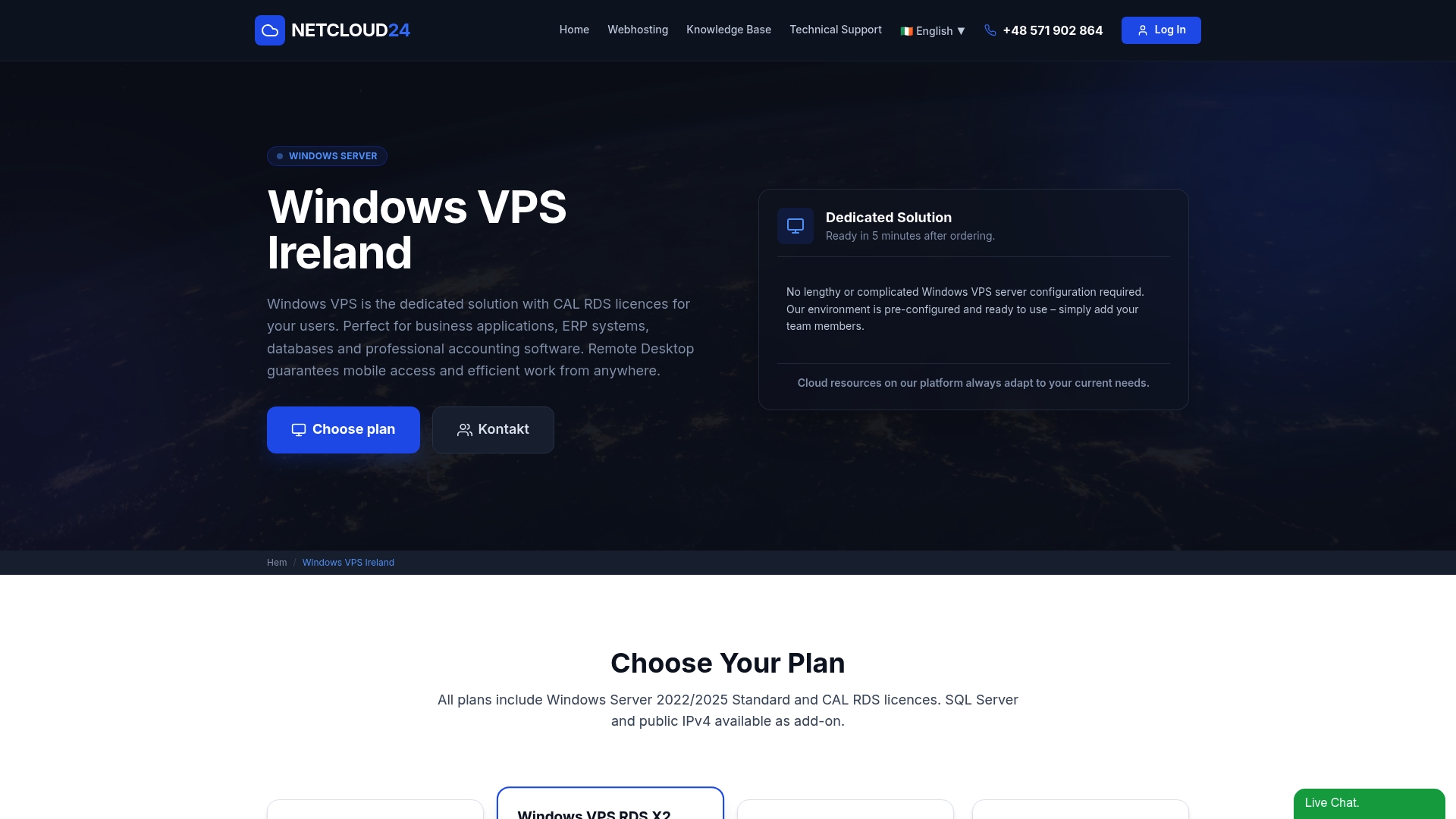
Netcloud24 offers Windows VPS hosting specifically configured for remote desktop and RDS access, with firewalls, VPN access, and RDS licensing included from deployment. There's no port-forwarding to configure, no manual MFA setup across individual machines, and no sleep-mode problems because the servers stay online around the clock. For Irish businesses running Sage, Xero, or ERP systems, the environment is pre-configured and GDPR-compliant out of the box, ready within five minutes. If you need enterprise-grade RDS hosting with NVMe storage, high availability, and full technical support, Netcloud24 removes the complexity this guide describes and replaces it with a managed environment that works from day one.
FAQ
What Windows editions support native Remote Desktop?
Windows Pro, Enterprise, and Education editions support native RDP as a host. Windows Home does not include this feature and requires an upgrade or a third-party alternative.
Do I need a VPN to use Remote Desktop over the internet?
Yes, for any connection outside your local network, VPN or RDS Gateway authentication is strongly recommended. Exposing RDP directly to the internet without a VPN or gateway significantly increases your attack surface.
Why does my Remote Desktop connection keep dropping?
The most common cause is power management settings on the host machine. Set sleep to Never and disable the "Allow the computer to turn off this device to save power" option in your network adapter settings.
What is the best port to use for RDP?
The default port 3389 should be changed to a non-standard high port (above 49152) to reduce automated attack traffic. Combining a port change with MFA provides the strongest baseline protection for any internet-exposed RDP endpoint.
How can I improve Remote Desktop performance and reduce lag?
Keep latency under 50 ms for comfortable interactive sessions. Reduce color depth in the RDP client, close unnecessary remote applications, and consider hosting your server closer to your users geographically to cut round-trip time.