
Deploying Windows Server in an enterprise environment is rarely straightforward. Between choosing the right deployment approach, locking down remote access, and sequencing your configuration steps correctly, a missed step early can cost you hours of troubleshooting later. This windows server deployment guide walks you through the entire process — from evaluating deployment types and verifying hardware prerequisites, through installation, role setup, security hardening, and final validation — so you can deliver a production-ready server without the guesswork.
Table of Contents
- Key takeaways
- Windows Server deployment guide: choosing your approach
- Preparing installation media and BIOS settings
- Step-by-step installation and initial configuration
- Installing roles, patching, and hardening the baseline
- Verifying deployment success and fixing common issues
- My take on deployment and what most guides skip
- Deploy faster with Netcloud24 Windows VPS hosting
- FAQ
Key takeaways
| Point | Details |
|---|---|
| Choose deployment type first | Match your approach (clean install, upgrade, or migration) to your risk tolerance and downtime window. |
| Hardware prerequisites matter | Windows Server 2025 requires UEFI Secure Boot, TPM 2.0, and a minimum of 32 GB storage. |
| Sequence your config steps | Rename, set static IP, patch, then add roles. Doing this out of order causes authentication and connectivity errors. |
| Harden early, not later | Lock down RDP, enable WinRM correctly, and apply security baselines before the server goes into production. |
| Verify before you walk away | Use diagnostic commands to confirm OS edition, network config, firewall rules, and update status post-deployment. |
Windows Server deployment guide: choosing your approach
Before you touch a single ISO file, you need to decide how you are deploying. Microsoft frames this decision around your environment's risk tolerance and acceptable downtime, and there is no universal right answer. Each approach has a specific use case, and picking the wrong one creates problems that no amount of post-install hardening can fix.
Here is how the four main approaches compare:
| Approach | Best use case | Key tradeoff |
|---|---|---|
| Clean install | New hardware or full OS refresh | No settings preserved; maximum control |
| In-place upgrade | Existing server with roles to preserve | Faster with settings retained; higher risk |
| Migration | Moving roles to new hardware | Minimal downtime; more planning required |
| Cluster rolling upgrade | Multi-node environments | Complex but preserves availability |
Beyond the deployment type, your hardware must meet the minimum bar before anything else matters. Windows Server 2025 requires a 1.4 GHz x64 processor, UEFI with Secure Boot, TPM 2.0, at least 32 GB of storage, and a minimum of 512 MB RAM for Server Core or 2 GB for Desktop Experience.
That Server Core versus Desktop Experience choice deserves its own moment. Server Core is managed entirely via PowerShell and SConfig, with no local GUI. That smaller footprint translates directly to a reduced attack surface, fewer services running, and lower memory overhead. Desktop Experience makes sense when you need local GUI access for legacy applications or admin tooling that requires it. For most enterprise deployments today, Server Core is the better starting point, and you can always add the Desktop Experience shell later if you genuinely need it.
Pro Tip: If you are deploying in a virtualized or cloud environment, building standard images by separating your OS install from your role configuration dramatically reduces configuration drift across instances.
Preparing installation media and BIOS settings
Once you have committed to an approach and confirmed your hardware, the next step is getting your installation media right. A corrupted ISO or a misconfigured boot order are responsible for more failed installs than most sysadmins want to admit.
Here is the correct sequence:
- Download the official Windows Server ISO from the Microsoft Evaluation Center or your volume licensing portal.
- Use the Microsoft Media Creation Tool or a utility like Rufus to write the ISO to a USB drive formatted as FAT32 with GPT partition scheme for UEFI systems.
- Verify the SHA-256 hash of the ISO against Microsoft's published checksum before writing.
- Enter BIOS/UEFI firmware and set the boot order to prioritize your USB drive.
- Disable legacy boot (CSM) if you are targeting UEFI Secure Boot, which Windows Server 2025 recommends.
- Save and exit. The system will boot from your USB media on the next restart.
Two errors show up constantly at this stage. First, teams use USB hubs or front-panel USB ports that do not reliably provide enough power during boot. Always plug directly into a rear motherboard USB port. Second, writing an ISO to a USB formatted for MBR on a UEFI-only system will produce a black screen at boot with no error message. Verify your partition scheme matches your firmware mode before assuming the ISO is corrupted.
Pro Tip: After writing your bootable media, boot from it on a test machine and advance through to the partition screen before your production deployment. This confirms media integrity without committing to an install.

Step-by-step installation and initial configuration
With your media ready and BIOS configured, you are ready to install. The installation workflow from Microsoft follows a clear sequence, but the configuration steps after first boot are where most teams lose time.
The installation itself:
- Boot from your USB media and select your language, time format, and keyboard input.
- Click "Install now" and enter your product key when prompted.
- Select your Windows Server edition and choose between Server Core and Desktop Experience.
- Accept the license terms, then choose "Custom: Install Windows only (advanced)" for a clean install.
- Select your target partition and let the installer run. The system will reboot automatically.
- On first boot, set a complex administrator password. This is not optional. Use at least 15 characters with mixed case, numbers, and special characters.
Initial configuration after first boot:
The recommended ordered sequence is: rename the computer first, assign a static IP address, configure DNS, set the correct timezone, run Windows Update, and then enable RDP. Doing these out of order regularly causes authentication failures and connectivity errors that look like more serious problems than they are.
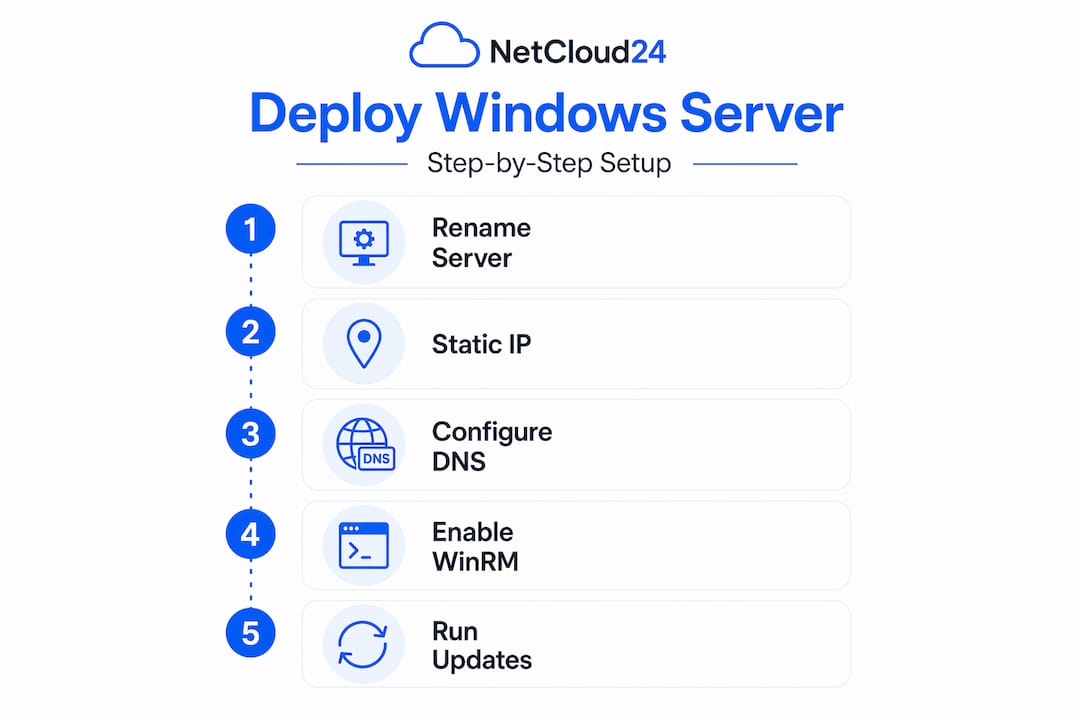
Once basic network config is done, enable Windows Remote Management (WinRM) so you can manage the server remotely going forward. In Server Core, run "winrm quickconfig` from the command line. On Desktop Experience, use Server Manager. Either way, get this done before you start adding roles. Remote access readiness fails most often when WinRM and firewall policies are not configured early in the process.
Pro Tip: Configure your NTP time source before joining any domain. A time skew of more than five minutes will prevent Kerberos authentication from working, which blocks domain join and Active Directory operations entirely.
Installing roles, patching, and hardening the baseline
With your server configured and reachable, you can add roles. The discipline here is restraint. Install only the roles your workload actually requires. Every role you add is additional attack surface, additional patching overhead, and additional services that can break.
Common enterprise roles and when to use them:
- Active Directory Domain Services (AD DS): Domain controllers and directory authentication
- DNS Server: Name resolution for domain-joined systems
- IIS (Web Server): Hosting web applications and APIs
- Remote Desktop Services (RDS): Multi-user remote access to business applications
- File and Storage Services: Centralized file shares and storage management
Install roles using Install-WindowsFeature in PowerShell or Server Manager. After each role install, reboot if prompted before proceeding to the next one. Pending reboot states combined with role configuration is a reliable way to produce unstable services.
Patching comes next, not last. Microsoft releases patches monthly on the second Tuesday, and applying the latest cumulative update immediately after role installation closes vulnerabilities that existed in your base ISO. Schedule your reboots and automate patching where your change management process allows it. Deferring patches until after hardening means your hardening baseline is built on an unpatched foundation, which defeats the purpose.
For security hardening, work through this checklist:
- Enable Windows Defender and verify definitions are current
- Configure Windows Firewall with explicit inbound and outbound rules; deny by default
- Enable BitLocker on the OS volume if the hardware supports it
- Disable services you do not need: Print Spooler, Fax, SNMP if unused
- Restrict RDP access to specific IP ranges or VPN-sourced connections only
- Disable Basic authentication on WinRM, which transmits credentials in plain text and is explicitly disallowed by STIG compliance guidance
After patching and hardening, take a snapshot or create a backup. This is your golden state. Every future change should be measured against this baseline, and you want a clean restore point before you go anywhere near production traffic. For guidance on securing enterprise remote access, the sequencing matters as much as the individual steps.
Pro Tip: Use Get-WindowsFeature in PowerShell to audit installed roles and features after deployment. Compare against your intended configuration document to catch anything that was installed during setup but was not planned.
Verifying deployment success and fixing common issues
A deployment is not done when the server is running. It is done when you can confirm the server is running correctly. Pull up PowerShell and run through these diagnostic checks:
Get-ComputerInfo | Select WindowsProductName, OsVersionconfirms your OS edition and buildGet-NetIPConfigurationverifies your static IP, gateway, and DNS resolver settingsGet-NetFirewallProfileshows which firewall profiles are active and their default actionsGet-WindowsUpdateLogor the Update History in Settings confirms your patch levelTest-WSManconfirms WinRM is responding correctly for remote management
The most common post-deployment failures fall into three categories. First: pending reboot states left over from role installation block subsequent configuration and cause intermittent service failures. Check for pending reboots with (Get-ItemProperty "HKLM:\SOFTWARE\Microsoft\Windows\CurrentVersion\Component Based Servicing\").RebootPending. Second: misconfigured firewall rules that block RDP or WinRM, which look like network problems but are local policy issues. Third: remote access failures caused by NLA (Network Level Authentication) settings or certificate mismatches on RDS configurations.
Pro Tip: Subscribe to Windows Server security tips covering RDP and compliance to catch configuration gaps that standard deployment checklists miss.
After verification, set up monitoring for Event Viewer alerts (specifically Event IDs 4625 for failed logons, 7034 for crashed services, and 41 for unexpected shutdowns). These three alone will catch the majority of stability and security issues in the first weeks post-deployment.
My take on deployment and what most guides skip
I have worked through enough Windows Server deployments to know that the documentation covers the mechanics well but consistently glosses over the judgment calls that actually determine whether a deployment succeeds.
The biggest one: Server Core is almost always the right choice, and teams avoid it because it feels uncomfortable without a GUI. In my experience, the discomfort goes away within a week of using PowerShell remoting and Windows Admin Center. What does not go away is the maintenance overhead and attack surface you carry indefinitely with Desktop Experience. Choose the harder option early.
The second thing I have learned is that enabling WinRM early in the process is not just a convenience. It is a safety net. If you brick your local configuration before you have remote access set up, you are console-only and working against a clock. Get remoting working at minute 15, not minute 55.
I have also watched teams skip the snapshot after hardening because they thought the deployment was "basically done." Then a role install or a Group Policy application corrupts something, and the rollback path is a full reinstall. Take the snapshot. It costs almost nothing and saves everything.
Finally, resist the temptation to automate everything on your first deployment in a new environment. Automation is the goal, but manual execution on the first pass forces you to understand what each step actually does. That understanding is what makes your automation scripts reliable. Once you have a scalable VPS workflow that you trust, then automate it. Not before.
— Lukasz
Deploy faster with Netcloud24 Windows VPS hosting

If you are deploying Windows Server to support enterprise applications like ERP systems, accounting software, or multi-user database access, Netcloud24's Windows VPS hosting gives you a pre-configured environment that is ready within five minutes. The platform includes RDS licensing for multi-user remote access, NVMe enterprise storage, high availability, and built-in firewall and VPN access. Every plan is designed for Irish business workloads, with GDPR compliance, automatic backups, and support for platforms like Sage and Xero. You get the infrastructure already hardened and ready. Your team focuses on deploying the applications, not the OS underneath them.
FAQ
What is the difference between Server Core and Desktop Experience?
Server Core has no local GUI and is managed via PowerShell or SConfig, giving it a smaller attack surface and lower memory usage. Desktop Experience includes the full Windows GUI and is suited for environments requiring local application access.
What are the minimum hardware requirements for Windows Server 2025?
Windows Server 2025 requires a 1.4 GHz x64 processor, UEFI with Secure Boot, TPM 2.0, 512 MB RAM for Server Core (2 GB for Desktop Experience), and at least 32 GB of storage.
Why should I disable Basic authentication on WinRM?
Basic authentication on WinRM transmits credentials in plain text, exposing them to interception. STIG compliance guidelines explicitly disallow it for both WinRM client and service configurations.
What is the correct order for initial Windows Server configuration?
The recommended sequence is: rename the computer, set a static IP, configure DNS and timezone, run Windows Update, and then enable RDP. This order prevents authentication and connectivity errors that arise from configuring RDP before network identity is established.
When should I patch Windows Server during deployment?
Apply cumulative updates after role installation but before hardening. Patching last means your security baseline is built on unpatched binaries, which undermines the entire hardening effort.