
Setting up a cloud server the wrong way costs you more than time. A misconfigured firewall, a forgotten root login, or a missing backup strategy can turn a productive deployment into a serious security incident before your first application goes live. This cloud server setup guide walks you through every critical stage, from pre-deployment planning through hardening, identity management, and production readiness. The focus is not just getting you logged in. It is getting you to a server that is genuinely secure, observable, and ready to run business applications reliably.
Table of Contents
- Key Takeaways
- Your cloud server setup guide starts with planning
- Initial server provisioning and hardening
- Identity and access management with Zero Trust principles
- Secure application deployment and operational readiness
- Troubleshooting common setup issues
- My honest take on what most setups get wrong
- Ready-to-run cloud servers from Netcloud24
- FAQ
Key Takeaways
| Point | Details |
|---|---|
| Plan before you provision | Select your OS, provider, and tools before touching a server to avoid costly rework later. |
| Harden on first login | Run updates, create a non-root user, configure SSH keys, and activate your firewall before anything else. |
| Apply Zero Trust from day one | Treat every access request as unverified by default, using MFA and least-privilege policies. |
| Automate operational tasks | Use tools like Ansible or Terraform to enforce consistency and reduce manual configuration errors. |
| Setup is never truly finished | Monitoring, patching, and lifecycle management are part of the deployment, not afterthoughts. |
Your cloud server setup guide starts with planning
Most failed deployments trace back to decisions that were never made before provisioning began. Choosing the wrong plan size, skipping OS hardening documentation, or ignoring how your team will access the server remotely are the kinds of gaps that turn into incidents at 2 a.m. Automating configuration with tools like Ansible and Terraform improves consistency and removes manual error from the start.
Choosing your provider and operating system
For Linux workloads, Ubuntu 24.04 LTS is the dominant choice in 2026 because of its long support window and strong community tooling. For Windows-dependent applications like ERP systems, accounting software, or databases requiring Remote Desktop Services, a Windows Server environment is the right foundation. Your OS decision should follow your application requirements, not convenience.
When selecting a plan, think in terms of peak load, not average load. Under-provisioned servers degrade under real traffic. Choosing a provider with NVMe storage matters here because I/O latency directly affects database and application performance at scale.
Tools and requirements before you start
Gather the following before your first connection:
- SSH key pair generated locally (ed25519 algorithm preferred in 2026)
- Admin credentials provided by your cloud provider at provisioning
- A firewall policy draft listing which ports your applications actually need open
- A DNS record pointing to your server IP, needed for SSL certificate issuance later
- A configuration management tool (Ansible, Terraform, or Salt) even for single-server setups
| Tool | Purpose |
|---|---|
| SSH key pair | Replaces password authentication for remote login |
| UFW / Windows Firewall | Controls inbound and outbound traffic at the OS level |
| Fail2ban | Blocks IPs after repeated failed authentication attempts |
| Ansible / Terraform | Automates repeatable configuration and reduces drift |
| Certbot (Let's Encrypt) | Issues free SSL certificates for HTTPS endpoints |
Pro Tip: Before provisioning, write a one-page deployment checklist that covers OS version, open ports, user accounts, backup schedule, and monitoring targets. This doubles as your post-deployment verification document.
Initial server provisioning and hardening
A secure Linux VPS setup in 2026 follows a repeatable process that takes 45 to 60 minutes and is the single most important window to get right. Every minute you delay hardening is a minute your server is exposed.
Follow these steps immediately after your first login:
- Run system updates. Execute "apt update && apt upgrade -y` before anything else. Fresh images from providers are often weeks behind on patches.
- Create a non-root sudo user. Never work as root in production. Create a named user with sudo privileges and switch to it immediately.
- Add your SSH public key to
~/.ssh/authorized_keysfor the new user. Test that key-based login works before proceeding. - Disable root login and password authentication in
/etc/ssh/sshd_config. SetPermitRootLogin noandPasswordAuthentication no, then restart the SSH service. - Configure UFW firewall rules. Allow only the ports you need: SSH (or a custom port), HTTP (80), and HTTPS (443). Deny everything else by default.
- Install Fail2ban. Default configuration blocks IPs after five failed SSH attempts within ten minutes. This blocks the majority of automated brute-force attacks.
- Enable unattended security upgrades so your server applies OS-level patches automatically between maintenance windows.
Deploying Ubuntu 24.04 LTS with immediate hardening following these exact steps is the recommended baseline for 2026 deployments. Skipping any single step in this sequence creates an exploitable gap.
Pro Tip: Change your SSH port from the default 22 to a high-numbered port above 1024. This eliminates the majority of automated scanning attempts that target default ports, without adding any meaningful friction to legitimate access.

Identity and access management with Zero Trust principles
Getting past the hardening phase does not mean your access model is secure. Most cloud servers run with far too many open admin paths, broad IAM roles, and shared credentials that nobody audits. NIST's Zero Trust architecture addresses this directly, shifting trust from network location to verified identity and context.
Zero Trust applied to a cloud server means treating every connection, including connections from your own team, as potentially untrusted until verified. Here is how to implement this practically:
- Restrict admin access through a VPN or bastion host. Admin access should be gated by VPN or bastion with strong multi-factor authentication and full session auditing. Open SSH access directly from the public internet is an avoidable risk.
- Apply least-privilege IAM policies. Least privilege IAM reduces risk by granting only the minimum permissions necessary for each role. If a service account only needs to read from a database, it should have no write permissions at all.
- Use policy-as-code tools like Terraform and HashiCorp Vault to define and enforce access policies in version-controlled configuration files. This creates an auditable record of every permission change.
- Enable Just-in-Time access for privileged operations. Tools like Vault and Boundary issue dynamic credentials with session-based revocation, which limits the window of exposure when credentials are compromised.
- Segment service-to-service communication. Your web server should not have unrestricted access to your database server. Use microsegmentation to enforce explicit, logged communication paths between components.
For Windows Server environments, applying these principles means configuring secure remote access through RDP only over VPN, enabling Windows Defender Credential Guard, and using Group Policy to enforce MFA across all privileged accounts.
Pro Tip: Audit your running services immediately after setup. Every open port and running daemon that is not required for your application is an attack surface. Use ss -tlnp on Linux to see exactly what is listening.
Secure application deployment and operational readiness
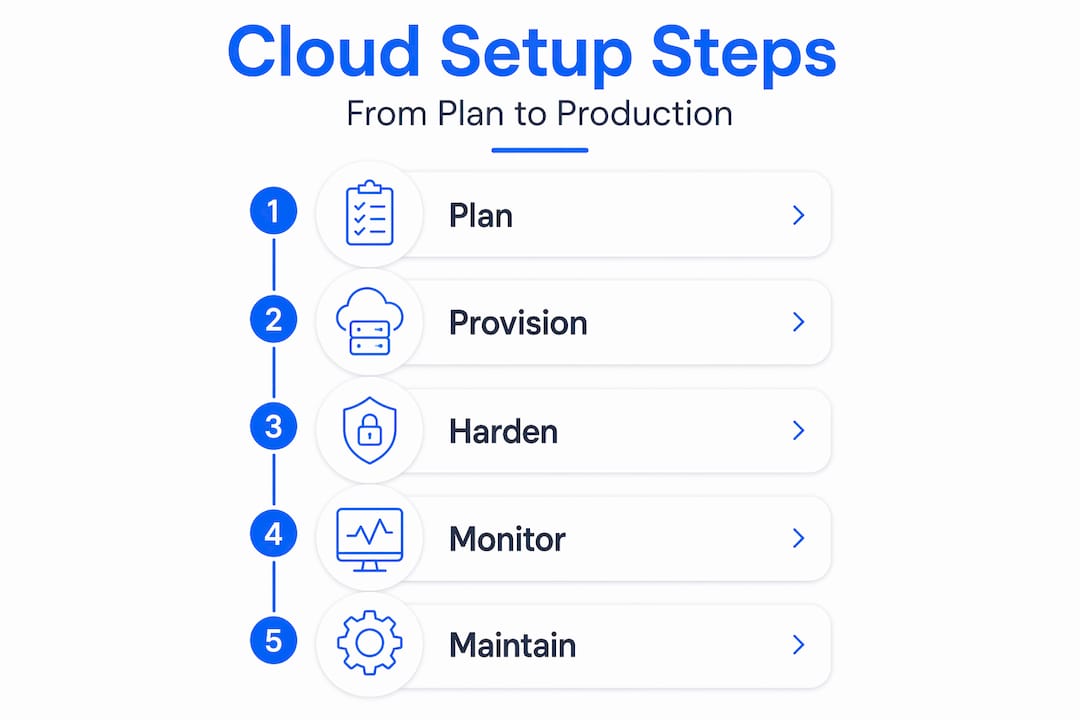
Getting an application running is not the same as running it securely. This is where most step by step vps deployment guides stop, and where real operational risk begins. Successful cloud deployments require automation, monitoring, and lifecycle management from day one, not as future improvements.
For a typical web application deployment, work through this sequence:
- Install your application stack with the minimum required packages. Nginx, your chosen runtime (Node.js, PHP, Python), and a database like PostgreSQL or MySQL should be installed from official repositories only, with versions pinned to known stable releases.
- Issue SSL certificates using Certbot and Let's Encrypt. HTTPS is non-negotiable, even for internal tools. Certbot handles automatic renewal, so there is no reason to run unencrypted traffic.
- Configure monitoring from the start. Tools like Prometheus with Grafana, or a cloud-native monitoring service, give you visibility into CPU, memory, disk I/O, and network traffic. Alerts should trigger before resources are exhausted, not after.
- Automate backups. Daily snapshots and file-level backups to a separate storage bucket protect you from both hardware failure and human error. Test your restore procedure before you need it.
| Practice | Tool | Frequency |
|---|---|---|
| Automated backups | Cloud snapshots or rsync | Daily minimum |
| Security patch application | Unattended-upgrades / WSUS | Weekly or triggered |
| SSL certificate renewal | Certbot | Auto-renew, check monthly |
| Log review | Fail2ban logs, auth.log | Daily |
| Resource monitoring | Prometheus, Grafana | Continuous |
Continuous monitoring, patching, and lifecycle management are what separate stable production environments from servers that accumulate technical debt until something breaks. This is not optional if you are running business-critical applications.
Troubleshooting common setup issues
Even a well-executed step by step cloud server setup will hit friction points. Knowing where to look saves hours of guesswork.
The most common issues after initial provisioning fall into three categories:
- Connection refused on SSH: Usually caused by UFW blocking the port before SSH is explicitly allowed, or by a provider-level security group that overrides OS firewall rules. Check both layers.
- SSL certificate failures: Most often a DNS propagation delay. Certbot requires your domain to resolve to the server's public IP before issuance. Verify DNS resolution with
digbefore running Certbot. - Application not reachable after install: Check that your app is actually listening on the expected interface with
ss -tlnp. A process binding to127.0.0.1is not reachable from the internet, even with the firewall open. - Authentication errors despite correct SSH keys: File permission issues. The
~/.sshdirectory must be700andauthorized_keysmust be600. Wrong permissions silently break key-based auth.
Always check
journalctl -xeand/var/log/auth.logfirst when something stops working. Most failures leave a clear error message that points directly to the cause.
For Windows Server deployments, verifying RDP and compliance settings against your security policy is a valuable post-setup verification step, especially for multi-user environments with RDS configured.
For a broader view of cloud security validation, reviewing current cloud security best practices for IT professionals helps you benchmark your setup against industry standards.
My honest take on what most setups get wrong
I have reviewed enough cloud server deployments to recognize a pattern. The technical steps get done. The server boots, SSH works, the app loads. And then someone closes the terminal and mentally marks the project as complete.
That is where things go wrong six months later.
In my experience, the gap between a provisioned server and a production-ready server is almost entirely in the operational layer. Monitoring that nobody set up. Backups that were configured but never tested. SSH keys that were shared between three people because setting up individual accounts "would take too long." These are not edge cases. They are the norm.
My view on Zero Trust is that it is not a product or a compliance checkbox. It is a discipline. Zero Trust fundamentally changes how remote access is managed by shifting trust from the network to the identity. Once you internalize that, you start asking different questions during setup. Not "is this open?" but "who specifically should have access, for how long, and what happens when that access ends?"
The teams that maintain stable, secure cloud environments are not the ones who did a better initial setup. They are the ones who built operational discipline into their process from day one. Automate what you can, monitor what you cannot automate, and review your access model every quarter. That is the whole formula.
— Lukasz
Ready-to-run cloud servers from Netcloud24
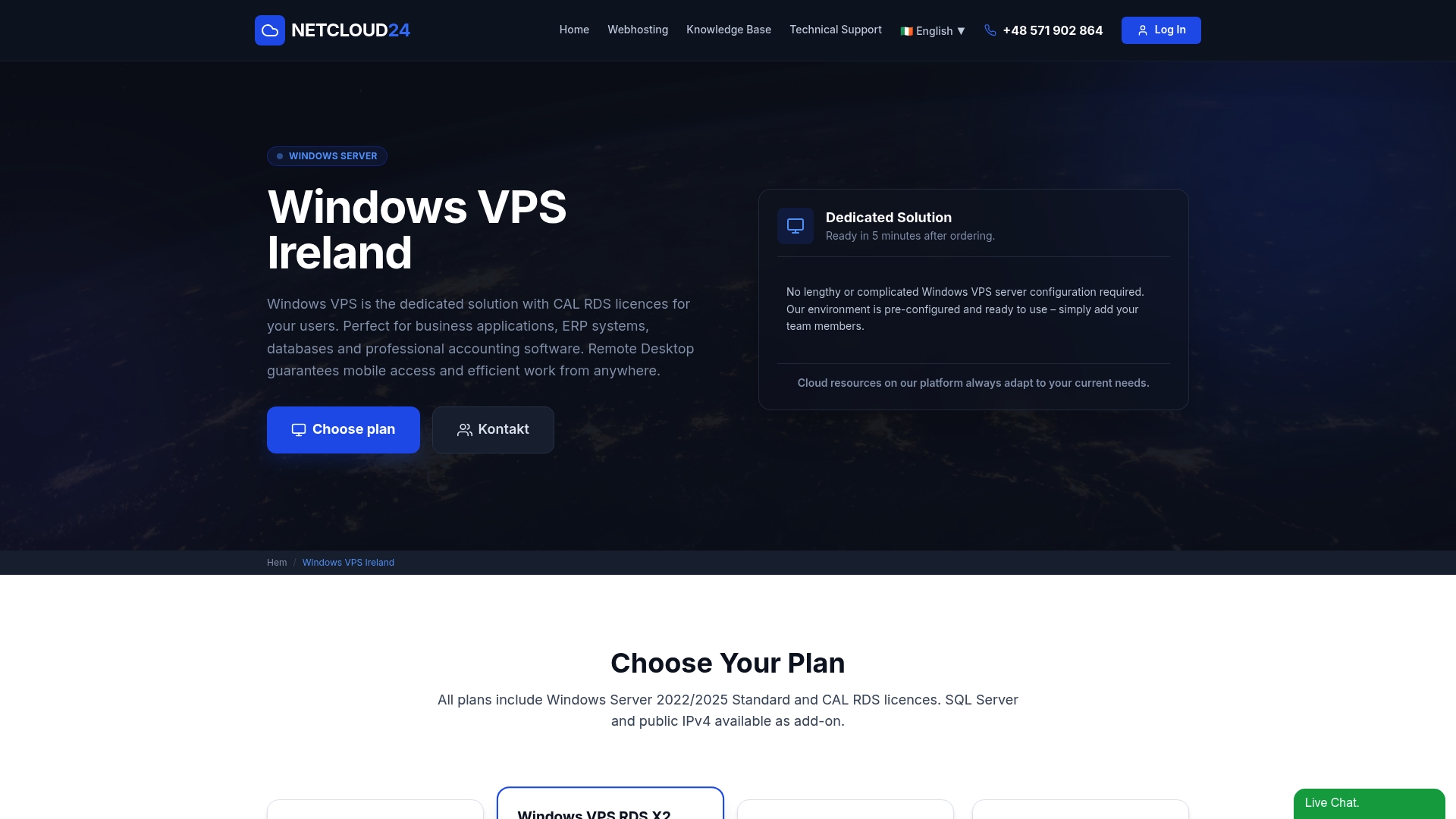
If this guide reflects what you need but you want to skip the provisioning complexity, Netcloud24 offers enterprise-grade Windows VPS hosting with RDS licensing included, NVMe enterprise storage, and environments that are ready for multi-user remote access within five minutes. Pre-configured security measures, firewall rules, and VPN access are built in, not bolted on. The platform is specifically designed for Irish businesses running ERP systems, accounting software, and databases requiring dependable remote access. Whether you are an IT professional managing a client deployment or a business owner who needs a production environment without building from scratch, secure Windows VPS hosting from Netcloud24 gives you the infrastructure foundation this guide describes, already in place.
FAQ
What is the first thing to do after provisioning a cloud server?
Run apt update && apt upgrade, create a non-root sudo user, configure SSH key authentication, and activate your firewall before anything else. Initial hardening should happen within the first session, before any application is installed.
How long does a proper cloud server setup take?
A secure baseline setup takes 45 to 60 minutes for a single Linux server. Adding application deployment, SSL configuration, and monitoring setup typically adds another one to two hours for a production-ready environment.
What is Zero Trust and why does it matter for cloud servers?
Zero Trust architecture means no user or service is trusted by default, regardless of network location. For cloud servers, this translates to requiring MFA, least-privilege access, and session-based credentials for all admin operations.
What is the difference between a VPS and a cloud server?
A VPS (Virtual Private Server) is a virtualized server on shared physical hardware with dedicated resources. A cloud server extends this model with on-demand scaling, high availability, and resource redundancy across distributed infrastructure. In practice, the step by step vps setup process and the step by step cloud server setup process follow the same core hardening sequence.
How do you secure remote access to a cloud server?
Restrict SSH or RDP to a VPN or bastion host, require MFA for all privileged accounts, disable password authentication, and use session-based credentials where possible. Securing enterprise remote access also requires audit logging so every session is traceable.